(A Guide for Absolute Beginners)
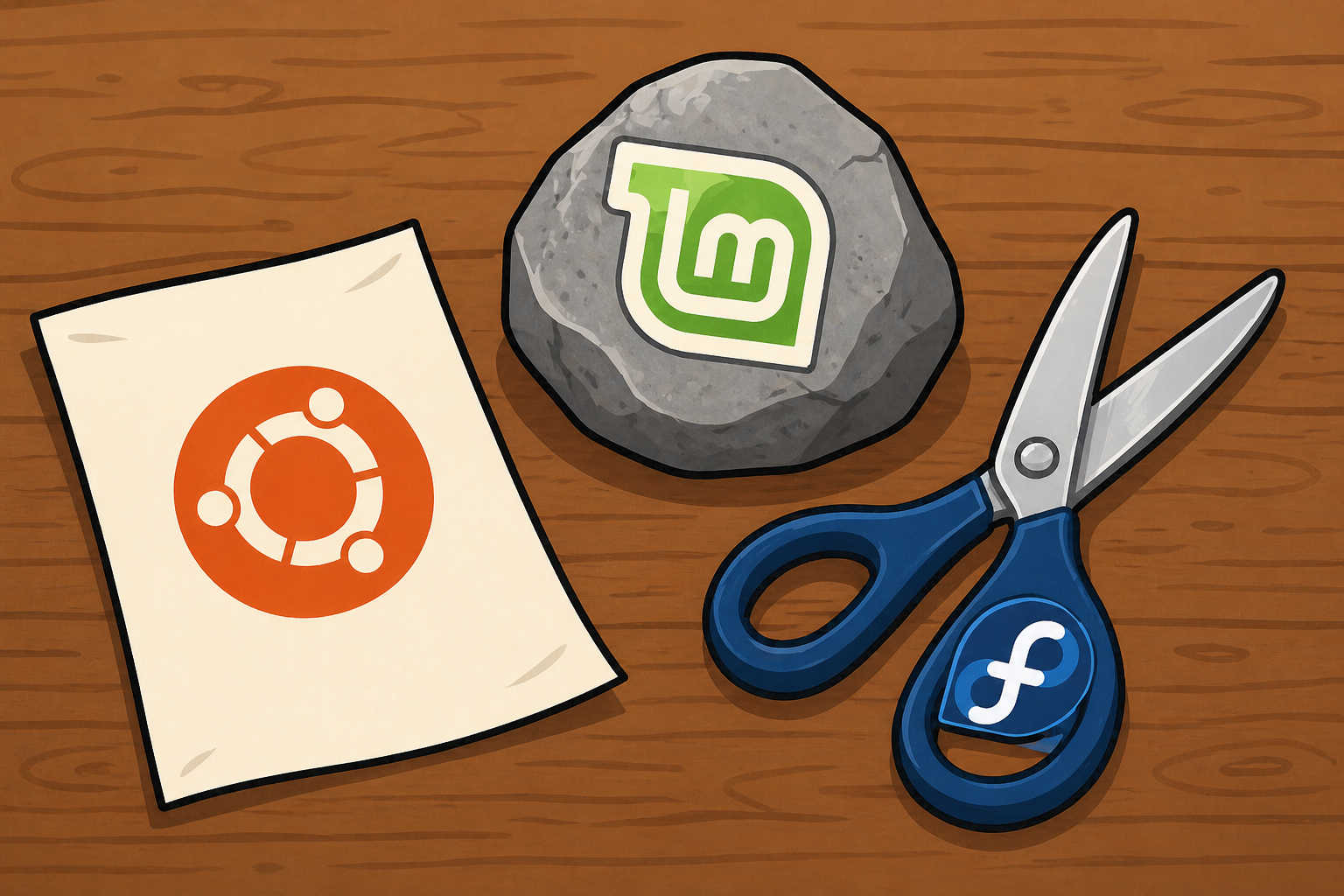
Feeling overwhelmed by the sheer number of Linux operating systems? You are not alone. Choosing a Linux “distro” (short for distribution) can feel like an impossible choice — it’s a massive ecosystem with numerous options. The truth is, there’s no single “perfect” distro. Each one has its unique strengths and weaknesses, which can make your decision-making feel like Rock, Paper, Scissors. The best fit really depends on your specific use case and your computer’s hardware.
In this article, I want to provide some guidance on the strengths and weaknesses of some of the most popular distributions in the Linux world, including hardware compatibility. This can help you make an informed decision about which distros to try and which ones may not be worth your time. At the end of the article, I’ll provide two easy ways to test these distros and a glossary for beginners.
Before We Begin: Some Quick Vocabulary
Linux: A kernel developed by Linus Torvalds in 1991. A kernel is kind of like an operating system’s brain. It acts as the bridge between the hardware (CPU, memory) and the software running on it. Usually, however, when people use the word “Linux,” they mean a family of open-source operating systems.
Distro (or distribution): A complete package built around the Linux kernel. It bundles the kernel with user applications, graphical interfaces, and tools to create a usable operating system (e.g., Ubuntu or Fedora).
Desktop Environment (DE): A graphical interface that the user interacts with. Most distributions have multiple DEs. The most common ones are KDE Plasma, Cinnamon, and GNOME.
The Main Contenders: A Distro Breakdown
Linux Mint
Many people start here because Mint offers simplicity and reliability. Mint is widely regarded as stellar because it works extremely well with nearly innumerable hardware combinations, and it is designed to make the transition into Linux as smooth as possible for newcomers. It lacks some of the “eye candy” – the visual appeal – that other distros have, but it’s a very solid, stable system.
What to know: It’s based on Ubuntu but uses its own customized DE called Cinnamon, which is fast and light while still feeling modern. It strikes an excellent balance between heavy-duty desktops and lightweight, featureless ones. Even if you have very old hardware, running Mint with its XFCE Desktop Environment (DE) is often a reliable bet.
Strengths: Installation and setup are easy, very good hardware compatibility, responsive desktop, low resource usage, and a fast, responsive software center. It’s an ideal OS for those who favor stability and usability over the latest “bells and whistles.” With extensions (like Blur Cinnamon), the dated appearance of the OS can be updated.
Weaknesses: Slightly dated default appearance, no stable Wayland support (expected around Christmas 2026). Application packages are also a bit older than what’s available on cutting-edge systems like Fedora.
Fedora
Fedora is known for being cutting-edge—meaning it adopts the newest technologies first. It’s fast, efficient, and works exceptionally well on most modern hardware.
What to know: Fedora has strong backing from Red Hat, which means professional developers maintain it full-time. They release a new version every six months, and each version is supported for thirteen months. There are also over a dozen desktop environments to choose from (my favorite is KDE, which looks and feels a bit like Windows 10). They also offer the “Atomic” line of immutable operating systems.
Strengths: The go-to OS if you have a new computer and need the latest hardware support. Being a cutting-edge distro means that you get the latest stable version of applications and desktop environments with all their feature and security improvements. Installation is very easy, and the system has low to moderate resource usage (depending on which desktop is chosen). Also, if security is of the utmost importance to you, Fedora is top notch. This distro is my first choice for most of my computers.
Weaknesses: Getting your computer set up can be a bit more complicated. Audio, video, and photo codecs must be manually installed through the RPM Fusion website due to American copyright and patent laws. NVIDIA GPU drivers must also be manually installed, and because kernel updates are frequent (weekly), sometimes those with NVIDIA graphics cards find their computer no longer working after an update. To keep things easy, I typically run Mint on my computers that have NVIDIA GPUs.
Ubuntu
Ubuntu, which is based upon Debian, is perhaps the most popular, visible, and well-known name in Linux. Countless other distros are built upon its foundation (including Mint and Zorin).
What to know: Ubuntu’s flagship Long-Term Support (LTS) releases are wonderful for those who want an OS they can truly “set and forget,” as they guarantee support up to 10 years. Numerous Desktop Environments are offered by Ubuntu, which they call “Flavours.”
Strengths: Moderately easy to install and setup. The LTS releases allow users to install a system and not worry about having to upgrade for several years. Because of its popularity, there’s tons of support online for almost any issue you could potentially encounter.
Weaknesses: The system can feel slow or bloated compared to Mint and Fedora, especially applications that are installed as Snaps. Flatpak access must be manually added after system setup, otherwise your software options will be limited. Additionally, Canonical (the corporation behind Ubuntu) has made some controversial decisions over the past decade which has earned them more online disdain than often deserved.
Overall, while a solid choice, it’s a bit slow for me personally.
ZorinOS
Zorin has gained significant popularity because it targets former Windows users with a more familiar interface design.
What to know: It is based on Ubuntu and uses a customized GNOME desktop. The customizations are designed to give a familiar “Windows look and feel.” It attempts to bridge the gap for people switching from Windows by setting up familiar keyboard shortcuts and redirecting common actions (like clicking an old .exe file) toward their Linux equivalents.
Strengths: Modern appearance and customizations make it easier for those who are transitioning from Windows. Being Ubuntu-based, solutions to many common issues you may encounter can be easily found online.
Weaknesses: Since it is a heavily-customized version of Ubuntu, it occasionally inherits some of Ubuntu’s slower feel. The customizations can also cause instability for some users. I found it to be incredibly helpful in the first year that I was using Linux. But after about a year, I “graduated” to distros that allow more tweaking and control of the system.
Pop!_OS
This distro is popular among developers and gamers.
What to know: One of its biggest selling points is providing the option of pre-packaged NVIDIA drivers when you download the installer file. That means your dedicated graphics card should work immediately upon installation. The company behind it, System76, also sells hardware designed to work seamlessly with the OS. So, if you’re looking for a new computer that is specifically designed for Linux, they are a solid option.
Strengths: Support and easy setup for those with NVIDIA GPUs. The Cosmic DE is a solid alternative to GNOME. Like Mint and ZorinOS, solutions for Ubuntu will often work for Pop!_OS.
Weaknesses: Cosmic DE is still a relatively new desktop. So, it may occasionally have minor bugs or quirks. It can also be slightly more resource-intensive than some other lighter distributions, making it less ideal for very old hardware.
Deepin
Deepin deserves an honorable mention simply for its distinctive aesthetic.
What to know: Like Mint and Pop!_OS, they built their own custom DE that is respected as one of the most visually stunning and highly polished in the entire Linux ecosystem. It’s great for someone who prioritizes a beautiful look paired with advanced features like built-in AI tools. Note, however, this is a China-based distro.
Strengths: An excellently designed DE, easy installation, and system-integrated AI tools.
Weaknesses: Heavy resource usage compared to other Linux distros, and some elements of the desktop have not been fully translated into English. Also, upon installation, you are greeted with an End User License Agreement which allows Deepin to collect and share user data at its discretion. Some of their security and privacy practices have raised eyebrows across the world. More details can be found in the article that I wrote here.
Not Sure Which One is Right For You?
If the comparisons still feel confusing, don’t worry! Here is your step-by-step guide to testing them all safely:
- Best Option: The Live USB Method
This is perfect for beginners. Go directly to each distro’s official website (Mint, Fedora, etc.), download the ISO file (this is the installation image), and use a free program like Rufus on Windows to “burn” that ISO onto your USB 3.0 stick. Then, follow your computer manufacturer’s instructions on how to boot from the USB drive. This lets you run the operating system live, giving it a comprehensive test on your specific hardware. As long as you don’t install the OS, you can test it for as long as you want without changing anything on your computer. - Second Best Option: Virtual Machine Testing
If you want to make changes to your desktop and “save” things, you can download a free virtual machine program (like VirtualBox). From there, you can download and run the ISO files inside this safe digital bubble. You’ll get a good feel for what the OS looks and feels like—though remember that these virtual environments can sometimes be both slow and buggy compared to a full install.
Quick Linux Glossary for Beginners
Distro (Distribution): Simply put, it’s an operating system built on the Linux kernel foundation. Each distro takes that core code and packages it with its own tools, default settings, and look-and-feel.
Desktop Environment (DE): This is what determines the look and feel of your OS—the desktop wallpaper, the taskbar, the start menu. Examples include Cinnamon or KDE Plasma. Some distros can run multiple DEs (such as Fedora and Ubuntu)!
Live USB: An operating system that you can boot up from a flash drive without installing it on your computer’s hard drive. It’s purely for testing!
LTS (Long-Term Support): When a distro promises to support the same major version of their OS for many years (e.g., 10 years). This is great for reliability if you don’t want to worry about updating constantly.